
This documentation explores the Rabo Smart Pay Online Payment API, which facilitates online payments initiated by a webshop. The following payment brands and wallets are offered:
- iDEAL
- Maestro
- MasterCard
- V PAY
- Visa
- Bancontact
- PayPal
- Apple Pay (Wallet)
Connect your webshop
First, it is necessary to integrate your webshop with the Online Payment API. The API works with any programming language and platform. You can connect your webshop to the Rabo Smart Pay API in several ways, depending on your preference:
- Plugins: For popular webshops like Magento and WooCommerce, plugins are available. These can be easily installed and configured without any coding.
- SDKs: For PHP, .NET, and Java, software development kits (SDKs) are available. These SDKs use our API and simplify the process for programmers.
- Connect your webshop to the API using our API specifications.
Setup sandbox account
Before your begin, make sure you have a working sandbox account in the Rabobank developer portal. Follow the Get Started guide to set up your account.
The** authentication method **described in the general Rabobank 'Get Started' guide does not apply to Rabo Smart Pay.
For Rabo Smart Pay, you will need a valid refresh token and a signing key for authentication and security. Here’s how you can obtain them:
- If you are successfully registered with Rabo Smart and have access to the dashboard: go to Zelf regelen > Webwinkels beheren > Acties to find the refresh token and signing key.
- If you are not developing for a specific merchant and therefore lack access to the dashboard: Contact our Support Team.
Once you have access to the sandbox environment, you can start integrating with the API and testing its functionality. Refer to the Rabo Smart Pay Sandbox API specifications for guidance on how to perform tasks such as announcing orders, retrieving order statuses, and processing refunds.
To simulate real-life transaction processing, consult the Manual - Paragraph 2.3.7 Testing in the test environment Rabo Smart Pay. By submitting specific calls, you can trigger predefined responses, such as a successful iDEAL transaction, allowing you to mimic realistic payment flows. When you are confident that the connections are working properly, proceed to Section – Switching from Sandbox to Live.
Switching from sandbox to live
After successfully integrating with the sandbox environment and verifying that all connections function correctly, you can transition to the live environment by:
- Changing the domain from https://api.pay-sandbox.rabobank.nl to https://api.pay.rabobank.nl.
Previously, the environment was indicated in the URL path (e.g., /omnikassa-api-sandbox). While this method is still supported, it is scheduled for deprecation.
- Replacing the sandbox credentials (refresh token and signing key) with the credentials for the live environment.
These live credentials can only be obtained by registered merchants via the Rabo Smart Pay dashboard.
Example:
- Sandbox: https://api.pay-sandbox.rabobank.nl/omnikassa-api/gatekeeper/refresh
- Live: https://api.pay.rabobank.nl/omnikassa-api/gatekeeper/refresh
Overview payment journey
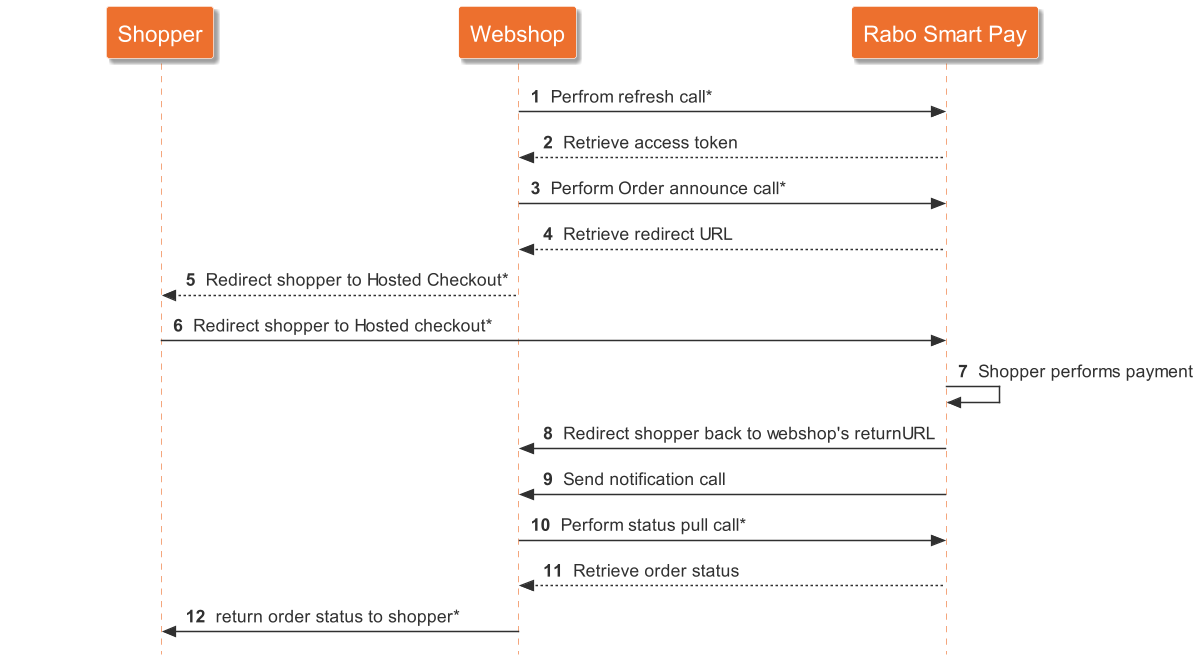
The Rabo Smart Pay Online Payment API enables online payments for webshops. The following steps outline the payment flow and indicate where your webshop needs to interact with Rabo Smart Pay:
- For authorization purposes, your webshop makes a refresh call to the Rabo Smart Pay API to obtain an access token. (If your previously obtained access token is still valid, you can skip this step.)
- After receiving an access token, the webshop makes an order announce call to announce an order.
- Your webshop then redirects the user to Rabo Smart Pay hosted checkout. The user makes the payment and is redirected back to the webshop.
- The Rabo Smart Pay API sends a notification call to notify the webshop of the order status update.
- Your webshop makes a status pull call to request the latest order status.
To complete an online payment, the webshop needs to perform three calls: the Refresh call, the Order Announce call, and the Status Pull call. The steps will be explained in more detail in the paragraphs below.
Refresh call to retrieve access token
The first step in the payment journey is authorizing your webshop to initiate online payments. This is done using a refresh call.
Your webshop makes the refresh call by handing over the refresh token in exchange for an access token from Rabo Smart Pay.
Access tokens are valid for a limited time. Your webshop must securely cache the token and reuse it for multiple calls until it expires. Track its validity and use the refresh token to obtain a new one when needed. Do not request a new token for every call.
Refresh call endpoint: GET - https://api.pay.rabobank.nl/omnikassa-api/gatekeeper/refresh
Order announcement
The next step in the payment journey is the order announce call, which is used to initiate a payment. The access token received in the previous step (refresh call) is needed to perform the order announcement. Additionally, you should provide order details in the request, the minimal required order details can differ between payment methods:
- The current date/time, merchant order ID, order amount, and the return URL should be included in every order, regardless of the payment method.
- Depending on the payment method, additional information should be included in the order.
If mandatory parameters for specific payment method(s) are missing from the request, the shopper is not able to complete the payment with the selected payment method. However, the shopper can still choose other available payment methods to complete the said payment.
An exception occurs if a payment method is forced while still missing information. In this case, the order announcement is refused even if other brands are available.
The table below shows which information should be included per payment brand:
| Payment brand | Additional information in order announcement |
|---|---|
| iDEAL, PayPal | No additional information required |
| Mastercard, Visa, Maestro, V Pay, Bancontact | Although not mandatory, we recommend you to include the email address and delivery address (or, if not known, the billing address) in the order for additional assurance for a successful payment. |
Rabo Smart Pay API responds with a unique ID assigned to the order and a payment page URL to redirect the user. In the order announcement call it is possible to add a User-Agent and a partner reference. This can be done in the X-Api-User-Agent header. The User-Agent should follow the standard string format found here: https://developer.mozilla.org/en-US/docs/Web/HTTP/Headers/User-Agent.
Order announce call endpoint v2: POST - https://api.pay.rabobank.nl/omnikassa-api/order/server/api/v2/order
Payment brand call (optional)
After receiving a valid access token (during the refresh call), a payment brand call can be performed. The payment brand call retrieves the available payment brands and their corresponding statuses. Only available payment brands are shown to the shopper. You can manage the availability of payment brands in the dashboard.
Payment brand call endpoint: GET - https://api.pay.rabobank.nl/omnikassa-api/order/server/api/payment-brands
VAT calculations
If order lines are supplied with VAT information, you should ensure that the total order amount is consistent with the order lines. The order amount (including VAT) must be equal to the sum of all order items' piece prices (including VAT) multiplied by their quantities. Depending on how this is calculated, rounding errors can occur, resulting in differences. If the order amount is incorrect, the order items are filtered out from the order announcement. Therefore, we recommend basing the total VAT amount on the VAT of the item price instead of the total order amount excluding VAT.
Example: A item price of an order item (excluding VAT) is €12.98, and a VAT rate of 21% applies. The piece price including VAT equals €12.98 + 21% = €15.71 (rounded to 2 decimals). If a shopper orders 7 items, the order amount (including VAT) to be specified in the announcement equals 7 x €15.71 = €109.97.
If the order amount is incorrect, the order items from the order announcement are filtered out.
Redirect shopper to checkout page & shopper returns to the webshop
After a successful order announcement, the merchant redirects the shopper to the Rabo Smart Pay checkout page. Here the shopper can complete their payment using any of the available payment brands.
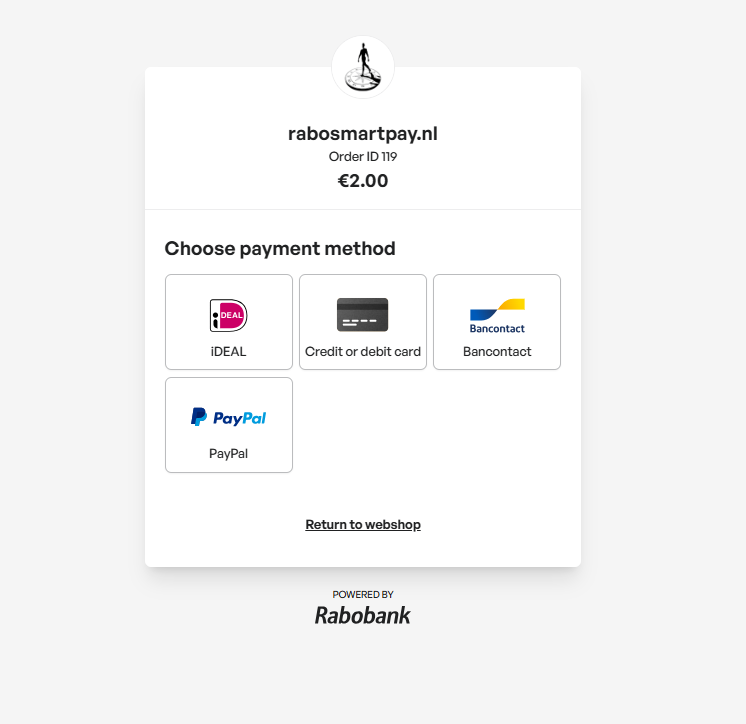
When/if the payment is completed, expired, or cancelled, the shopper redirects to the webshop. After redirect, the following additional parameters are added to the return URL, providing information about the order status:
| URL Parameter | Description | Example |
|---|---|---|
order_id | The merchant order ID as supplied in the order announce call. | order123 |
status | The status of the order. | COMPLETED |
signature | The hexadecimal representation of the signature of the data in the URL. | 14bf9e935956546887c7c8fd020a0702cd4462d3dd97b48752f3d4d4c5a9cf0afbd8c60d2b7b0e0c46564b1bfeb0a4f7ffc160005c71a1f7c504ef7ca8bbfb82 |
The final status of an order is not known in all cases, for example with an iDEAL payment there might be some delay before the final state is known.
Overview order statuses
The order status can have various states. Possible values for the order status include:
- IN_PROGRESS: The payment has not yet been completed. This can occur if the shopper is still in the checkout process or due to a breakdown or delay in payment processing. This is a possible outcome of an iDEAL or credit card payment.
- COMPLETED: The payment was successful.
- EXPIRED: The shopper has not paid within the stipulated time period.
- CANCELLED: The shopper chose not to pay and actively cancelled the order.
Verify signature
To verify the integrity of the request it is highly recommended that the webshop verifies the signature using the HMAC-SHA512 cryptographic algorithm. This can be done by:
- Constructing the payload by concatenating the values of the
order_idand the status parameters in a comma-separated string. Make sure that the values are specified in this order without any spaces, otherwise the signature validation fails, e.g.: order123,COMPLETED - Next, initialize a HMAC-SHA512 computation by supplying the (secret) signing key.
The signing key is supplied in a base64 encoded format and must be decoded to the corresponding byte sequence. Subsequently, the UTF-8 byte representation of the payload is presented to the HMAC-SHA512 to arrive at the signature in byte representation. To compare this with the expected value in the signature parameter of the return URL, it must be encoded to (lowercase) hexadecimal string. If the values are equal, then the request to return to the webshop is authentic; otherwise, the request should be rejected by the webshop.
Below are code examples in PHP, Java, and C# to further illustrate the signature computation:
PHP
$payload = 'order123,COMPLETED';
$signingKey = '<signing key as copied from Rabo Smart Pay Dashboard>';
$signingKeyDecoded = base64_decode($signingKey);
$signature = hash_hmac('sha512', $payload, $signingKeyDecoded);
Java
String payload = "order123,COMPLETED";
String signingKey = "<signing key as copied from Rabo Smart Pay Dashboard>";
byte[] signingKeyDecoded = Base64.getDecoder().decode(signingKey);
Mac macAlgorithm = Mac.getInstance("HmacSHA512");
Key secretKey = new SecretKeySpec(signingKeyDecoded, "HmacSHA512");
macAlgorithm.init(secretKey);
byte[] result = macAlgorithm.doFinal(payload.getBytes(StandardCharsets.UTF_8));
String signature = Hex.encodeHexString(result);
C#
string payload = "order123,COMPLETED";
string signingKey = "<signing key as copied from Rabo Smart Pay Dashboard>";
byte[] signingKeyDecoded = Convert.FromBase64String(signingKey);
string signature = "";
using (var hmacsha512 = new HMACSHA512(signingKeyDecoded))
{
    var stream = new MemoryStream(Encoding.UTF8.GetBytes(payload));
    foreach (var b in hmacsha512.ComputeHash(stream))
    {
        signature += $"{b:x2}";
    }
}
Notification call
After one or more new orders are processed at Smart Pay, the Rabo Smart Pay API sends a notification message to the webshop. This notification serves as an invitation for the webshop to retrieve the order statuses with a Status Pull call. The webshop can do this immediately (even before an answer has been given to the notification) or at a later time.
The notification contains a token that the webshop must use in the Status Pull call; this token has a limited validity (minutes). If the webshop does not make a status update call, Rabo Smart Pay sends a new notification. Rabo Smart Pay gives up after a number of attempts until a new order is processed.
The body of the notification is a JSON object that contains the following fields:
| Field | Meaning |
|---|---|
authentication | The token that must be used for the status pull call. |
expiry | The validity period of the token, in the ISO-8601 format. |
eventName | The type of notification. For the time being this is always: merchant.order.status.changed. |
poiId | Identification of the webshop (point of interaction), seen from Rabo Smart Pay. This is relevant if several webshops use the same webhook URL. |
signature | The hexadecimal representation of the signature of the data in the notification. |
Verify signature
The notification is cryptographically signed by Rabo Smart Pay using the same approach as the return URL so that the webshop can verify its integrity. It is highly recommended that your webshop verifies the signature before accepting the notification. If the computed signature is equal to the signature in the notification then the notification can be trusted and further processed; otherwise the notification should be rejected by the webshop.
The signature is then computed by applying HMAC-SHA512 with the base64 decoded signing key and the payload above decoded to a UTF-8 byte sequence.
The fields used for the payload are in the following order:
- authentication
- expiry
- eventName
- poiId
Example:
eyJraWQiOiJOTyIsImFsZyI6IkVTMjU2In0.eyJubyMiOjEyMywibWtpZCI6NSwibm8kIjoibWVyY2hhbnQub3JkZXIuc3RhdHVzLmNoYW5nZWQiLCJjaWQiOiJhYmNkLTEyMzQiLCJleHAiOjE0ODg0NjQ1MDN9.MEUCIHtPFoKmXAc7JNQjj0U5rWpl0zR9RsQvgj_n-ckHBngHAiEAmbtgrxaiy4cS3BTHd0DJ8md3Rn7V13Nv35m5DurY1wI,2016-11-25T09:53:46.765+01:00,merchant.order.status.changed,123On successful receipt of the notification, Rabo Smart Pay expects an HTTP status code 200 in return. If another status code is sent in response to the notification, Rabo Smart Pay assumes that the notification could not be processed and does not try to send the notification again until a new order is processed.
If more than one signing key is active for the webshop, Rabo Smart Pay sends separate notifications to the webshop, each signed with a different key. This is because Rabo Smart Pay does not know which key is actually used within the webshop. The webshop can carry out a successful verification of the signature with one signing key.
Status pull call
After Rabo Smart Pay sends a notification call, your webshop can retrieve the final status for the newly processed order(s) using the Status Pull call. A token should be used in the authentication field of the notification message.
The response of this call is cryptographically signed by Rabo Smart Pay using the same approach as the return URL so that the webshop can verify the integrity. It is recommended that the webshop validates the signature before processing the response.
For example, consider the following response:
{
"signature": "99ca2487243fbad72bbaa456a3219db7b0d2a19777f436cedb3c045e999b86c05001bb0837b43caa3d1757321d00959ac2a161f473a103af72bf440db5147b4a",
"moreOrderResultsAvailable": false,

"orderResults": [
{
"merchantOrderId": "order00001",
"omnikassaOrderId": "1d0a95f4-2589-439b-9562-c50aa19f9caf",
"poiId": "2004",
"orderStatus": "CANCELLED",
"orderStatusDateTime": "2016-11-25T13:20:03.157+01:00",
"errorCode": "",
"paidAmount": {
"currency": "EUR",
"amount": "0"
},
"totalAmount": {
"currency": "EUR",
"amount": "4999"
}
},
{
"merchantOrderId": "order00002",
"omnikassaOrderId": "5a89e364-9800-11e9-bc42-526af7764f64",
"poiId": "2004",
"orderStatus": "COMPLETED",
"orderStatusDateTime": "2016-11-25T13:20:45.654+01:00",
"errorCode": "",
"paidAmount": {
"currency": "EUR",
"amount": "8999"
},
"totalAmount": {
"currency": "EUR",
"amount": "8999"
},

"transactions" : [{
"id" : "1",
"paymentBrand" : "IDEAL",
"type" : "PAYMENT",
"status" : "SUCCESS",
"amount" : {
"currency" : "EUR",
"amount" : "8999" },
"confirmedAmount" : {
"currency" : "EUR",
"amount" : "8999" },
"startTime" : "2016-07-28T12:51:15.574+01:00",
"lastUpdateTime" : "2016-07-28T12:51:15.574+01:00" }
]
}
]
}
Status pull call endpoint v2: GET - https://api.pay.rabobank.nl/omnikassa-api/order/server/api/v2/events/results/merchant.order.status.changed
Verify signature
To verify the signature, the payload is constructed by concatenating the fields into a comma-separated string in the following order:
- moreOrderResultsAvailable
- orderResults
where each element of orderResult is expanded to a comma-separated string in the following order:
- merchantOrderId
- omnikassaOrderId
- poiId
- orderStatus
- orderStatusDateTime
- errorCode
- paidAmount currency
- paidAmount amount
- totalAmount currency
- totalAmount amount
followed by a list of transactions, each in order:
- id
- paymentBrand
- type
- status
- amount currency
- amount amount
- confirmedAmount currency
- confirmedAmount amount
- startTime
- lastUpdateTime
The
confirmedAmountvalues is regarded as null values if theconfirmedAmountis null.
Below are some examples of the payload for a completed and cancelled order:
Successful order and transaction:
false,order00002,5a89e364-9800-11e9-bc42-526af7764f64,2004,COMPLETED,2016-11-25T13:20:45.654+01:00,,EUR,100,EUR,100,1,IDEAL,PAYMENT,SUCCESS,EUR,100,EUR,100,2016-07-28T12:51:15.574+01:00,2016-07-28T12:51:15.574+01:00,2,IDEAL,PAYMENT,SUCCESS,EUR,200,EUR,200,2016-07-28T12:51:15.574+02:00,2016-07-28T12:51:15.574+02:00Cancelled order and transaction:
false,order00003,5a89e364-9800-11e9-bc42-526af7764f65,2004,CANCELLED,2016-11-25T13:20:45.654+01:00,,EUR,0,EUR,100,1,IDEAL,PAYMENT,CANCELLED,EUR,100,,,2016-07-28T12:51:15.574+01:00,2016-07-28T12:51:15.574+01:00,2,IDEAL,PAYMENT,CANCELLED,EUR,200,,,2016-07-28T12:51:15.574+02:00,2016-07-28T12:51:15.574+02:00The signature is then computed by applying HMAC-SHA512 with the base64 decoded signing key. The payload above is decoded to a UTF-8 byte sequence. If the computed signature equals the value of the signature field, then the response is authentic and further processing can continue, if not, then the response should be rejected.
Alternative to status pull call
Similar to the status pull call, the order status also allows for retrieving status information about an order. Order statuses are guaranteed to remain available for 24 hours after the order reaches a final status.
Order status endpoint: GET - https://api.pay.rabobank.nl/v2/orders/{orderId}
This API endpoint is intended for exceptional cases only. Specifically when a webhook notification has not been received. For monitoring status changes, you must use the webhook mechanism provided (see Retrieve order status (status pull call). Polling this endpoint as the primary method for status updates is prohibited.
Refund
After a transaction is successful, it is possible to initiate a refund. Refunds can be initiated using the Rabo Smart Pay dashboard or Rabo Smart Pay app. Next to these, it is possible to initiate refunds via the refund endpoint. For more functional documentation about refunds see the Rabo Smart Pay manual.
The API contains three endpoints for refunds:
- Initiating a refund
- Retrieving details such as the status of a refund.
- Retrieving the refundable amount of a transaction.
The webhook mechanism exposes a transaction ID in the merchant.order.status.changed version 2 endpoint. This transaction ID must be used to initiate or request the status of a refund.