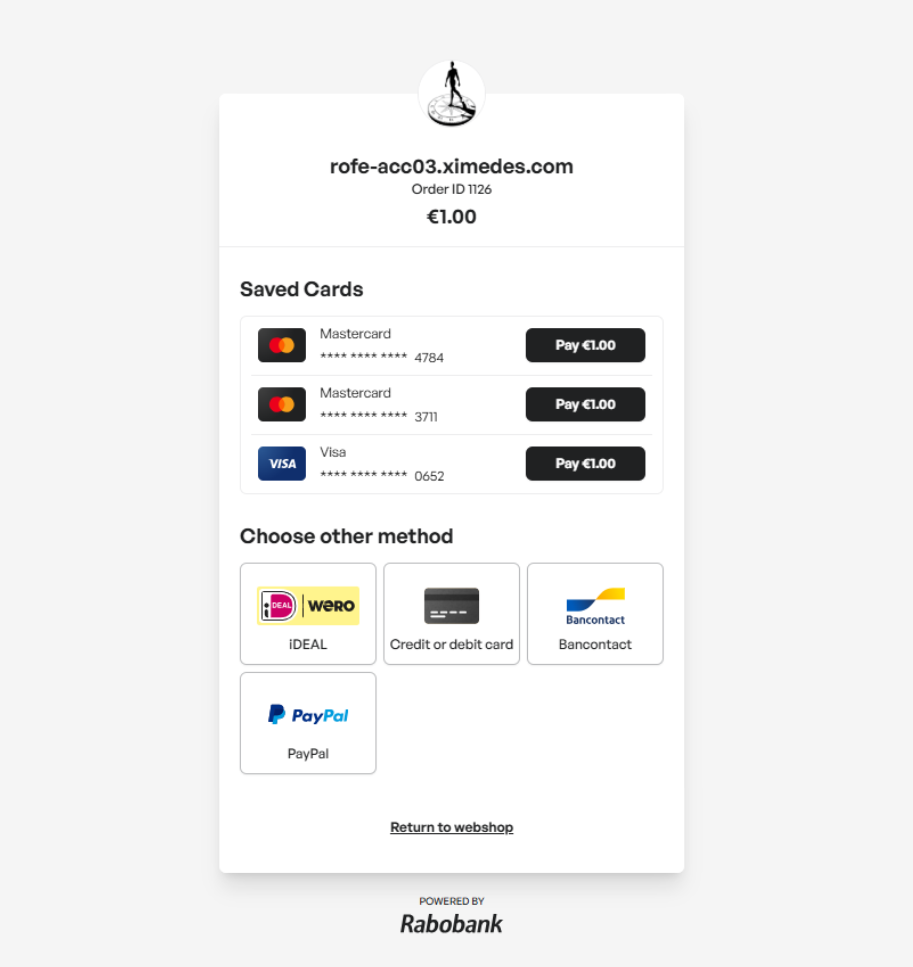
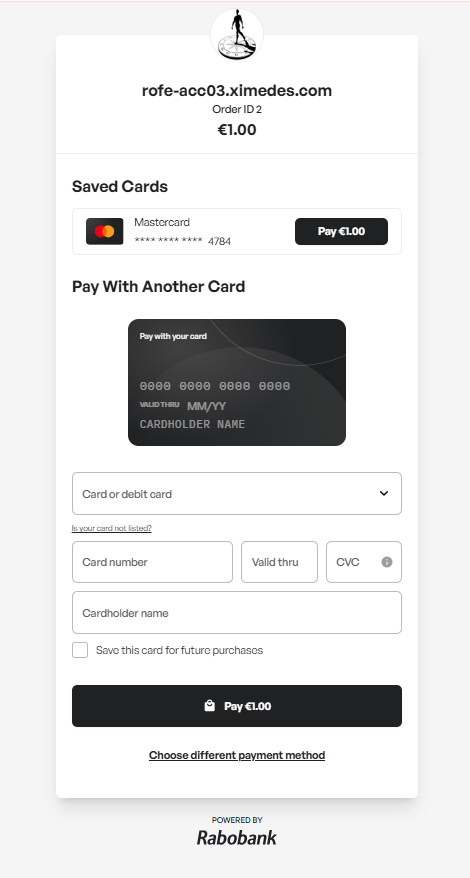
Card on File allows shoppers to securely store their card details for your website for future transactions. This functionality is especially valuable for streamlining repeat purchases and improving the overall shopping experience, as it removes the need for shoppers to re-enter their card information each time they check out. This feature supports major card brands, including Visa, Mastercard, VPay, and Maestro.
Configuration
You can activate Card on File directly through your self-service dashboard in just a few clicks:
-
Path: Self service → My business → Manage webshop → Webshop payment methods → Edit or Add
-
Enable Card on File by checking the box for the selected webshop.
Click to Pay and Card on File cannot be shown simultaneously on the checkout page. When both wallets are enabled in your account, the enableCardOnFile flag will ensure that Card on File will be enforced and Click to Pay will be suppressed.
Integration
Integration with Card on File varies depending on your setup. Please consult the correct section based on the integration you use.
API integration
If you use direct API integration, you’ll need to make adjustments in the order announcement. Additionally, a set of APIs is provided to manage the stored payment details. Use the sandbox test guide to mimic Card on File scenarios.
Create order announcement
To use Card on File, you must announce orders via the https://api.pay.rabobank.nl domain. Visit the 'Create order announcement' endpoint here. Include the following parameters in the order announcement to enable Card on File:
- EnableCardOnFile: Boolean (default False). Set to True to store and to use store cards.
- shopperRef: Unique shopper ID in your system. Required for storing and retrieving cards.
- Email address: Required for Card on File transactions.
Managing stored cards
You can use the following Card on File endpoints to manage stored cards for a shopper:
- Get Payment Details - Retrieve all stored cards associated with a specific shopper.
- Delete Payment Details - Remove a stored card from the shopper’s account.
SDK integration
Card on File functionality is included in the Java SDK and the .NET SDK. The PHP SDK will be updated soon. If you use an SDK, please visit the SDK git.
Plugin integration
Card on File functionality is included in most plugins. Make sure your plugin is updated to the latest version. Go to the settings to enable Card on File. If Card on File is not supported or you experience issues, please reach out to PayoCity.
Example hosted checkout