
This section provides guidance on implementing core features with our APIs. It covers topics like authentication, payments, refunds, and shopper details.
Authentication
Before you can use any API, you must authenticate by obtaining an access token. To make the Get Access Token call, you’ll need your refresh token. If you don’t have it yet, you can find it in the dashboard by navigating to: Self Service → My Business → Manage Webshop → Actions → Integration Settings → Actions → Copy Webkeys
Use this refresh token to request an access token.
Get access token 🔗
Once you have the refresh token, your webshop can call the Get Access Token endpoint to exchange it for an access token from Rabo Smart Pay. This access token is required to perform other API calls.
Access tokens are valid for a limited time. Your webshop must securely cache the token and reuse it for multiple calls until it expires. Track its validity and use the refresh token to obtain a new one when needed. Do not request a new token for every call.
Payments
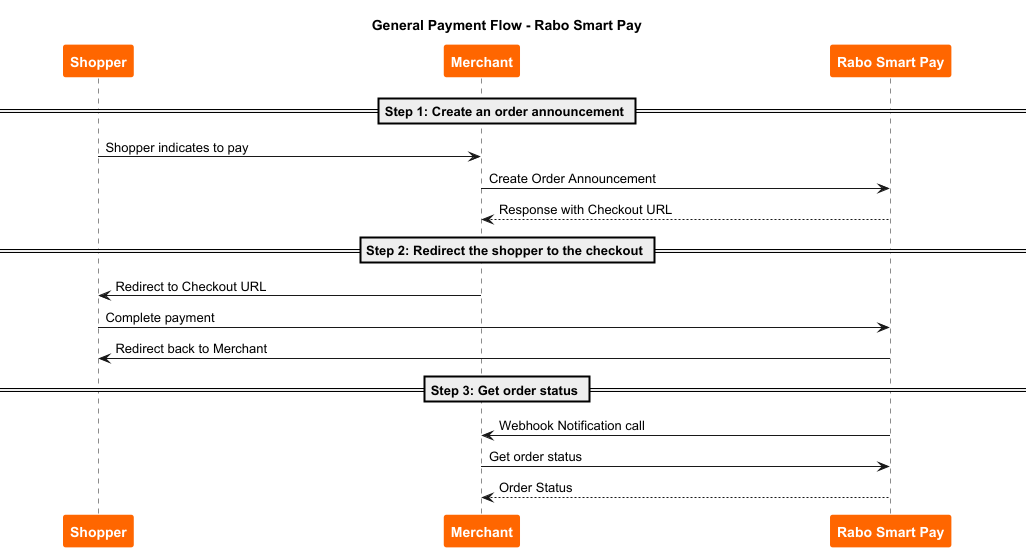
The steps below outline the general payment flow and show where your webshop interacts with Rabo Smart Pay:
- Create an order announcement
- When the shopper is ready to pay, your webshop calls the Create Order Announcement endpoint to create an order. The response includes a URL for the checkout page.
- Redirect the shopper to the checkout
- Your webshop redirects the shopper to the checkout page. The shopper completes the payment and is then redirected back to your webshop.
- Get order status
- Once the shopper returns, your webshop should retrieve the latest order status. Rabo Smart Pay will send a webhook notification to your configured endpoint when the order status changes. Your webshop should call the Get Order Status API endpoint to fetch the current status of the order.
In addition to these core steps, other endpoints provide extra functionality. Below, you will find instructions on how to use the endpoints to create a payment process.
Create order announcement 🔗
The first step in the payment journey is the create order announcement call, which is used to initiate a payment. You should provide order details in the request, the minimal required order details can differ between payment methods:
- The User-Agent in the header should follow the standard string format found here: Mozilla User Agent.
- The current date/time, merchant order ID, order amount, and the return URL should be included in every order, regardless of the payment method.
- Depending on the payment method, additional information should be included in the order.
The table below shows which information should be included per payment brand:
| Payment brand | Additional information in order announcement |
|---|---|
| iDEAL | WERO, PayPal | No additional information required |
| Mastercard, Visa, Maestro, V Pay, Bancontact | Although not mandatory, we recommend you to include the email address and delivery address (or, if not known, the billing address) in the order for additional assurance for a successful payment. |
If mandatory parameters for specific payment method(s) are missing from the request, the shopper is not able to complete the payment with the selected payment method. However, the shopper can still choose other available payment methods to complete the said payment. An exception occurs if a payment method is forced while still missing information. In this case, the order announcement is refused even if other brands are available.
If the Create Order Announcement call is successful, the Smart Pay API will respond with a unique order ID and a payment page URL to redirect the user. You will need to redirect the shopper to this payment page URL. Here, the shopper can complete their payment using any of the available payment brands.
Wallet functionality
To enable wallet-based payments, some additional setup and configuration may be required. The following guides provide step-by-step instructions for popular wallet options:
- Card on File Integration Guide – Store and use customer card details securely for faster checkout.
- Click to Pay Integration Guide – Enable seamless payments with Click to Pay functionality.
- iDEAL Snel Bestellen Integration Guide – Offer quick ordering with iDEAL for returning customers.
Get order status🔗
The Get Order Status endpoint uses a ping-pull mechanism. First, you will receive a notification call on your webhook endpoint The notification contains a token, which is required to pull the status via the Get Status endpoint. Each step will be elaborated below.
Webhook endpoint
Set your webhook URL in the dashboard to receive notifications whenever new information becomes available.
- Create a webhook in your backend that can receive notifications.
- Register the webhook endpoint in the dashboard. Log in to your Rabo Smart Pay dashboard and navigate to: Self Service → My Business → Manage Webshop → Actions → Integration Settings → Edit Webhooks
- Once registered, you can start receiving notifications on this endpoint.
Notification call
After one or more new orders are processed in Rabo Smart Pay, the API sends a notification message to your webhook endpoint. Rabo Smart Pay expects an HTTP status code 200 in return. After several unsuccessful attempts, Rabo Smart Pay will stop retrying until a new order is processed.
The notification includes a token, which your webshop must use to fetch the order status via the Get order status endpoint. This token is only valid for a limited time (a few minutes). If your webshop does not make the status update call within that timeframe, Rabo Smart Pay will resend the notification.
The body of the notification is a JSON object containing the following fields:
| Field | Meaning |
|---|---|
authentication | The token that must be used for the Get order status call. |
expiry | The validity period of the token, in the ISO-8601 format. |
eventName | The type of notification. For the time being this is always: merchant.order.status.changed. |
poiId | Identification of the webshop (point of interaction), seen from Rabo Smart Pay. This is relevant if several webshops use the same webhook URL. |
signature | The hexadecimal representation of the signature of the data in the notification. |
Verify signature
The notification is cryptographically signed by Rabo Smart Pay, so you can verify the integrity. If the computed signature is equal to the signature in the notification then the notification can be trusted and further processed; otherwise the notification should be rejected by the webshop. The signature is then computed by applying HMAC-SHA512 with the base64 decoded signing key and the payload above decoded to a UTF-8 byte sequence.
The fields used for the payload are in the following order:
- authentication
- expiry
- eventName
- poiId
Example:
eyJraWQiOiJOTyIsImFsZyI6IkVTMjU2In0.eyJubyMiOjEyMywibWtpZCI6NSwibm8kIjoibWVyY2hhbnQub3JkZXIuc3RhdHVzLmNoYW5nZWQiLCJjaWQiOiJhYmNkLTEyMzQiLCJleHAiOjE0ODg0NjQ1MDN9.MEUCIHtPFoKmXAc7JNQjj0U5rWpl0zR9RsQvgj_n-ckHBngHAiEAmbtgrxaiy4cS3BTHd0DJ8md3Rn7V13Nv35m5DurY1wI,2016-11-25T09:53:46.765+01:00,merchant.order.status.changed,123Get order status with token
After receiving the notification call with the token, you can get the order status via the 'Get order status' endpoint. For example, consider the following response:
{
"signature": "99ca2487243fbad72bbaa456a3219db7b0d2a19777f436cedb3c045e999b86c05001bb0837b43caa3d1757321d00959ac2a161f473a103af72bf440db5147b4a",
"moreOrderResultsAvailable": false,

"orderResults": [
{
"merchantOrderId": "order00001",
"omnikassaOrderId": "1d0a95f4-2589-439b-9562-c50aa19f9caf",
"poiId": "2004",
"orderStatus": "CANCELLED",
"orderStatusDateTime": "2016-11-25T13:20:03.157+01:00",
"errorCode": "",
"paidAmount": {
"currency": "EUR",
"amount": "0"
},
"totalAmount": {
"currency": "EUR",
"amount": "4999"
}
},
{
"merchantOrderId": "order00002",
"omnikassaOrderId": "5a89e364-9800-11e9-bc42-526af7764f64",
"poiId": "2004",
"orderStatus": "COMPLETED",
"orderStatusDateTime": "2016-11-25T13:20:45.654+01:00",
"errorCode": "",
"paidAmount": {
"currency": "EUR",
"amount": "8999"
},
"totalAmount": {
"currency": "EUR",
"amount": "8999"
},

"transactions" : [{
"id" : "1",
"paymentBrand" : "IDEAL",
"type" : "PAYMENT",
"status" : "SUCCESS",
"amount" : {
"currency" : "EUR",
"amount" : "8999" },
"confirmedAmount" : {
"currency" : "EUR",
"amount" : "8999" },
"startTime" : "2016-07-28T12:51:15.574+01:00",
"lastUpdateTime" : "2016-07-28T12:51:15.574+01:00" }
]
}
]
}
Verify signature
The response of this call is cryptographically signed by Rabo Smart Pay, so you can verify the integrity. To verify the signature, the payload is constructed by concatenating the fields into a comma-separated string in the following order:
- moreOrderResultsAvailable
- orderResults
where each element of orderResult is expanded to a comma-separated string in the following order:
- merchantOrderId
- omnikassaOrderId
- poiId
- orderStatus
- orderStatusDateTime
- errorCode
- paidAmount currency
- paidAmount amount
- totalAmount currency
- totalAmount amount
followed by a list of transactions, each in order:
- id
- paymentBrand
- type
- status
- amount currency
- amount amount
- confirmedAmount currency
- confirmedAmount amount
- startTime
- lastUpdateTime
The
confirmedAmountvalue is regarded as null values if theconfirmedAmountis null.
Below are some examples of the payload for a completed and cancelled order:
Successful order and transaction:
false,order00002,5a89e364-9800-11e9-bc42-526af7764f64,2004,COMPLETED,2016-11-25T13:20:45.654+01:00,,EUR,100,EUR,100,1,IDEAL,PAYMENT,SUCCESS,EUR,100,EUR,100,2016-07-28T12:51:15.574+01:00,2016-07-28T12:51:15.574+01:00,2,IDEAL,PAYMENT,SUCCESS,EUR,200,EUR,200,2016-07-28T12:51:15.574+02:00,2016-07-28T12:51:15.574+02:00Cancelled order and transaction:
false,order00003,5a89e364-9800-11e9-bc42-526af7764f65,2004,CANCELLED,2016-11-25T13:20:45.654+01:00,,EUR,0,EUR,100,1,IDEAL,PAYMENT,CANCELLED,EUR,100,,,2016-07-28T12:51:15.574+01:00,2016-07-28T12:51:15.574+01:00,2,IDEAL,PAYMENT,CANCELLED,EUR,200,,,2016-07-28T12:51:15.574+02:00,2016-07-28T12:51:15.574+02:00The signature is then computed by applying HMAC-SHA512 with the base64 decoded signing key. The payload above is decoded to a UTF-8 byte sequence. If the computed signature equals the value of the signature field, then the response is authentic and further processing can continue, if not, then the response should be rejected.
Get order details 🔗
The Get Order Details call enables you to retrieve information about orders. It provides details such as the order amount, status, and related transactions. Order statuses are guaranteed to remain available for 24 hours after the order reaches its final status.
This API endpoint is intended for exceptional cases only. Specifically when a webhook notification has not been received. For monitoring status changes, you must use the webhook mechanism provided (see Retrieve order status (Get order status call). Polling this endpoint as the primary method for status updates is prohibited.
returnURL order status
When the payment is completed, expired, or cancelled, the shopper redirects to the webshop. After the redirect, the following additional parameters are added to the return URL, providing information about the order status:
| URL Parameter | Description | Example |
|---|---|---|
order_id | The merchant order ID as supplied in the order announce call. | order123 |
status | The status of the order. | COMPLETED |
signature | The hexadecimal representation of the signature of the data in the URL. | 14bf9e935956546887c7c8fd020a0702cd4462d3dd97b48752f3d4d4c5a9cf0afbd8c60d2b7b0e0c46564b1bfeb0a4f7ffc160005c71a1f7c504ef7ca8bbfb82 |
The final status of an order is not known in all cases, for example with an iDEAL | WERO payment there might be some delay before the final state is known.
Verify signature
To verify the integrity of the request it is highly recommended that the webshop verifies the signature using the HMAC-SHA512 cryptographic algorithm. This can be done by:
- Constructing the payload by concatenating the values of the
order_idand the status parameters in a comma-separated string. Make sure that the values are specified in this order without any spaces, otherwise the signature validation fails, e.g.: order123,COMPLETED - Next, initialize a HMAC-SHA512 computation by supplying the (secret) signing key.
The signing key is supplied in a base64 encoded format and must be decoded to the corresponding byte sequence. Subsequently, the UTF-8 byte representation of the payload is presented to the HMAC-SHA512 to arrive at the signature in byte representation. To compare this with the expected value in the signature parameter of the return URL, it must be encoded to (lowercase) hexadecimal string. If the values are equal, then the request to return to the webshop is authentic; otherwise, the request should be rejected by the webshop.
Below are code examples in PHP, Java, and C# to further illustrate the signature computation:
PHP
$payload = 'order123,COMPLETED';
$signingKey = '<signing key as copied from Rabo Smart Pay Dashboard>';
$signingKeyDecoded = base64_decode($signingKey);
$signature = hash_hmac('sha512', $payload, $signingKeyDecoded);
Java
String payload = "order123,COMPLETED";
String signingKey = "<signing key as copied from Rabo Smart Pay Dashboard>";
byte[] signingKeyDecoded = Base64.getDecoder().decode(signingKey);
Mac macAlgorithm = Mac.getInstance("HmacSHA512");
Key secretKey = new SecretKeySpec(signingKeyDecoded, "HmacSHA512");
macAlgorithm.init(secretKey);
byte[] result = macAlgorithm.doFinal(payload.getBytes(StandardCharsets.UTF_8));
String signature = Hex.encodeHexString(result);
C#
string payload = "order123,COMPLETED";
string signingKey = "<signing key as copied from Rabo Smart Pay Dashboard>";
byte[] signingKeyDecoded = Convert.FromBase64String(signingKey);
string signature = "";
using (var hmacsha512 = new HMACSHA512(signingKeyDecoded))
{
    var stream = new MemoryStream(Encoding.UTF8.GetBytes(payload));
    foreach (var b in hmacsha512.ComputeHash(stream))
    {
        signature += $"{b:x2}";
    }
}
Refunds
If you want to do a refund after a successful transaction, you have several options. You can initiate refunds directly from the Rabo Smart Pay dashboard, the Rabo Smart Pay app, or programmatically via the Refund API.
The API offers three endpoints to help you manage refunds:
Get refundable details 🔗
Use this endpoint to check how much of a transaction can still be refunded. This is useful if you’re considering a partial refund or want to confirm the remaining refundable amount.
Create refund 🔗
This endpoint allows you to initiate a refund for a specific transaction. You can choose to refund the full amount or a partial amount, and include a description and reference for tracking purposes.
Get refund details 🔗
After initiating a refund, use this endpoint to track its status. It returns information suh a the refund amount, reference, and processing status. This will help you stay informed about the progress and outcome.
Shoppers
The shopper endpoints enable you to manage shopper-specific details. For example, you can allow your shopper to store payment information for future use with Card on File. If you want to configure and integrate Card on File, please visit the Card on File integration guide.
Get payment details 🔗
Use this endpoint to fetch all stored payment details for a shopper. To make the request, include the shopperRef, which uniquely identifies the shopper. Use the same reference provided in the initial order for which the payment details were saved.
Delete payment details 🔗
Use this endpoint to remove a specific shopper payment detail. Shopper payment details include stored payment methods, such as Cards on File. To make the request, provide the shopperRef as a query parameter and specify the unique identifier of the shopper payment detail as a path parameter.